Stay connected to your care.
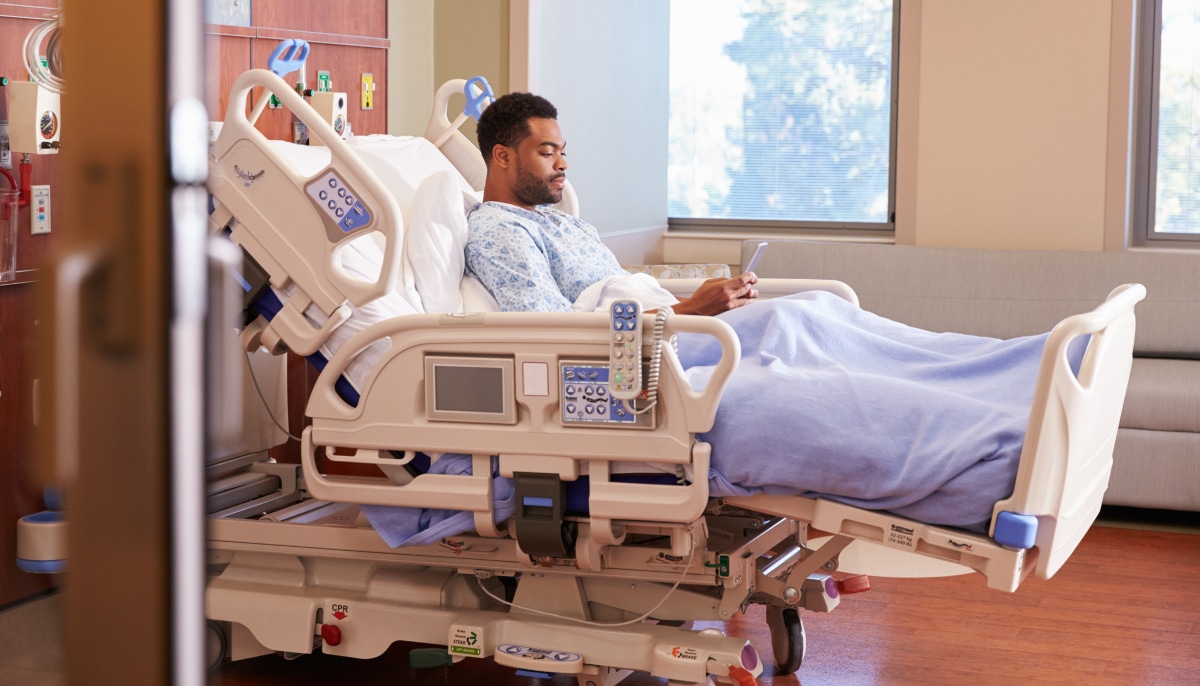
If you’re 18 or older, you can use MyChart Bedside on your phone or tablet while you’re in the emergency department or during your hospital stay.
What you can do with MyChart Bedside:
- View your care plan: Look at your chart to see test results, the medicines you are taking, and education about your care.
- Plan your day: See what is scheduled for your care. Tell your care team about any visits you expect.
- Get access for family members: A patient proxy is a trusted person assigned by the patient to see their care plan. If you have a proxy, they can use MyChart Bedside too.
- Complete education: Complete assigned education related to your care.
- Complete questionnaires: Easily complete forms and questionnaires.
- Know your care team: Learn about the people taking care of you in the “Taking Care of Me” section.
- Check the food menu: Look at the “Let’s Eat” section to see what food you can choose. (inpatient only)
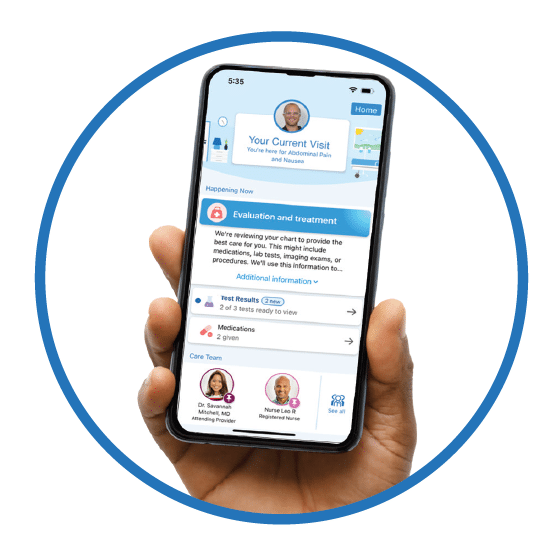
How to start using MyChart Bedside
If you already have a MyChart account:
1. Open the MyChart app on your Apple or Android device. If you don’t have the app yet, download it by clicking the corresponding link below or search for “MyChart” in the App Store or Google Play.
2. After signing in, tap “View Hospital Stay” if you’re in the hospital or “View Details” if you’re in the emergency department to begin using MyChart Bedside.
If you don’t have a MyChart account:
1. Download the MyChart app on your phone or tablet by clicking the corresponding link below or search for “MyChart” in the App Store or Google Play.
2. Open the app and select Add Organization.
3. Search for and choose ECU Health.
4. Tap Sign Up, then select Sign up with your information.
5. Follow on-screen steps to create your account.
6. After your account is set up, tap “View Hospital Stay” if you’re in the hospital or “View Details” if you’re in the emergency department to begin using MyChart Bedside.